eSIM · iPhone
How to set up an eSIM on iPhone: steps in Settings
Activating an eSIM on an iPhone takes two minutes when everything is ready, and an hour of stress in the arrivals hall when it is not. The difference is one step: add it before you leave.
Does your iPhone support eSIM?
According to Apple, every iPhone from the iPhone XS, XS Max and XR onward supports eSIM. Apple says one iPhone can store eight or more eSIMs, with two active at once, so you do not need to delete an old travel eSIM to add a new one.
The exception: iPhones sold in mainland China support eSIM only on specific models Apple lists, and some Hong Kong and Macao models use two physical nano-SIMs instead. If your iPhone came from there, check before buying a travel plan.
Travel eSIM: the QR code route
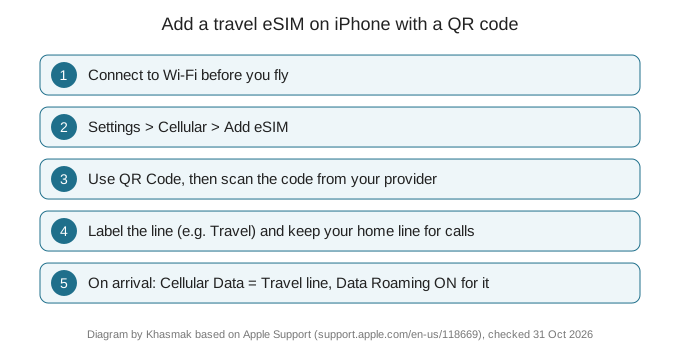
Most travel eSIM providers email a QR code after payment. Open Settings, then Cellular, then Add eSIM, choose Use QR Code and scan it. You need Wi-Fi or data during this step, which is why we suggest adding it at home or in the hotel before the trip, not at the airport after landing.
Scanning needs the code on another screen or on paper. If the code is on the same phone, choose manual entry and type the activation details the provider sends with it.
After adding it: settings that stop roaming bills
Label the new line clearly, such as "Travel", and keep your home line for calls and texts if you need bank codes. Under Cellular, set Cellular Data to the travel line. On arrival, turn on Data Roaming for the travel line only, and make sure it is off for your home line. That one mistake causes most surprise roaming bills.
Quick Transfer for your home number
To move your number from an old iPhone to a new one, Apple requires both devices on iOS 18.4 or later, signed in to the same Apple Account, close together with Bluetooth on, and the old iPhone unlocked. With iOS 26 you can move more than one number at once. Activating the line on the new iPhone switches off the old SIM immediately, so do not wipe the old phone until the new line works.
This depends on carrier support in your country; if the option does not appear, you will need to contact your carrier or visit a store.
Ways to activate eSIM on iPhone, per Apple
| Method | How it works | Requirement | Best for |
|---|---|---|---|
| eSIM Quick Transfer | Old iPhone to new iPhone | Both on iOS 18.4 or later, same Apple Account, Bluetooth on | Moving your home number |
| Carrier Activation | Carrier links the eSIM to your iPhone at purchase | Carrier must support it | New line bought from a carrier |
| QR code | Scan a code from the eSIM provider | Wi-Fi or data while adding | Travel data eSIMs |
| Transfer from Android | From a non-Apple phone | Carrier support, follow their steps | Switching from Android |
Source: Apple Support: Set up eSIM on iPhone, checked 31 October 2026.
What an unlimited travel eSIM costs: Airalo examples
| Destination | 3 days | 7 days | 15 days |
|---|---|---|---|
| Egypt | $19.50 (≈ 73.12 SAR) | $32.00 (≈ 120.00 SAR) | $49.00 (≈ 183.75 SAR) |
| Turkey | $11.50 (≈ 43.12 SAR) | $24.50 (≈ 91.88 SAR) | $39.00 (≈ 146.25 SAR) |
| UAE | $12.50 (≈ 46.88 SAR) | $27.50 (≈ 103.12 SAR) | $49.00 (≈ 183.75 SAR) |
USD prices as shown on Airalo's pages for these three countries on 31 October 2026, unlimited-data plans; SAR conversion is ours at the 3.75 peg. Checkout price may differ.
Updated: 31 October 2026
Traveller questions
Do all iPhones support eSIM?
XS, XR and later; see supported phones.
Can I run two lines?
Yes on most supported models.
Can I reuse a QR code?
Usually not; ask the carrier.